Answer
Oct 27, 2024 - 09:38 AM
DTF has made the process of printing onto garments very easy and simple for us as it eliminates the need for Pre-Treating a garment and allows you to print on many types of fabrics which is not possible with a DTG. So, many Epson DTG customers have started using their DTG printer as a DTF.
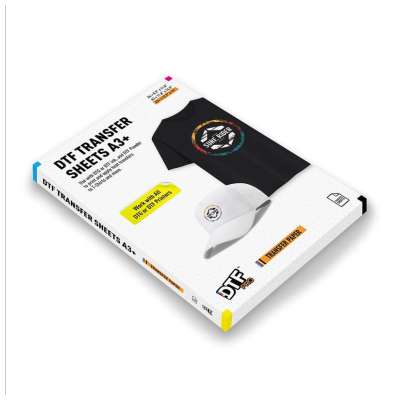
The very popular DTG model Epson F2100/F2000 is the one recently was tested to be used as a DTF using Epson DTG inks with DTGPRO Transfer Sheets and DTGPRO Transfer Powder giving some great results. Here are some videos showing the DTGPRO supplies in use with Epson DTG printers:
https://www.youtube.com/watch?v=nQ8Ob...
https://www.youtube.com/watch?v=6lVc2...
Here are the common/suggested settings as suggested by Epson DTG users:
- STEP 1-IMPORT AND INVERSE YOUR ART IN THE SOFTWARE
- STEP 2- PRINT COLOR USING ONLY LEVEL 2 (Light Color T-Shirt. Standard)
- STEP 3- PRINT COLOR AND DRY FOR 30 sec.
- STEP 4- FOR WHITE INK , USE LEVEL 1 (Dark Color T-Shirt. Standard)
- STEP 5- STOP PRINTER AFTER WHITE INK PRINTED
- STEP 6- QUICK DRY THE INK FOR A FEW SECONDS ,NO PRESSURE
- STEP 7- APPLY THE POWDER TO THE PRINTED DESIGN
- STEP 8- CURE/DRY POWDER 2 min. 300 degrees F
- STEP 9- TRANSFER THE DESIGN USING HEAT PRESS AT 300 degrees F FOR 15 sec. WITH LIGHT PRESSURE
- STEP 10- ALLOW TO COOL AND PEEL THE SHEET
- STEP 11- PRESS AGAIN FOR 20-30 sec WITH LIGHT PRESSURE AT AROUND 300 degrees F
IMPORTANT-
- Make sure to shake off the any excess powder before you dry the design.
- You can use PLATEN HEIGHT LEVEL -1 and Need to tape Down the Sheets on the platen so that it doesn't moves while printing.
- Over curing/ heating the design with too much pressure may result in dye migration and fading.
Above are recommended settings, but you may need to adjust slightly to your liking based on different heat presses / options.